Sherlock Scenario
Sherlock Scenario We are a SOC Analyst tasked with investigating a potential breach in the main.local domain. This network is compromised of three machines. One Domain Controler(DC01) and two clients(Client02/03). A user on Client03 received a phishing email, leading to a series of attacks that led to a full compromise of the Active Directory environment.…
We are a SOC Analyst tasked with investigating a potential breach in the main.local domain. This network is compromised of three machines. One Domain Controler(DC01) and two clients(Client02/03). A user on Client03 received a phishing email, leading to a series of attacks that led to a full compromise of the Active Directory environment. Our job is to analyze the provided Windows Event Logs and Sysmon logs to reconstruct the attack.
We are provided with windows event logs from each of the machines in the network. Additionally, we have a copy of the $MFT for each of the hosts.
What is the name of the phishing attachment downloaded by Client02?
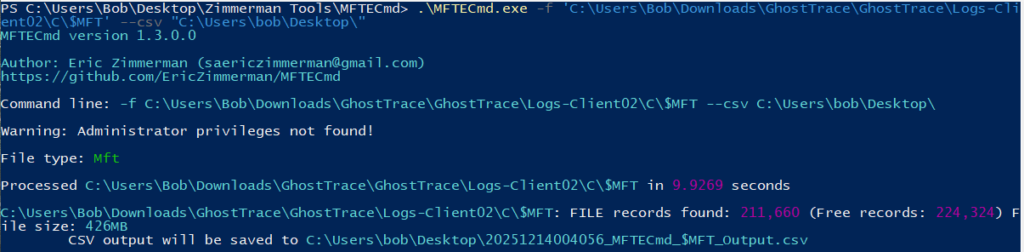
When we want to view files that were written to the system, we should look at the $MFT file, which contains metadata about all of the files on a NFTS volume. To parse this file we can use MFTECmd from Eric Zimmerman:

After downloading MFTEcmd, we can run it specifying the $MFT file we want to parse and where to output the .csv file.
Now we want to download Eric Zimmerman’s Timeline Explorer, which let’s us view the .csv file:

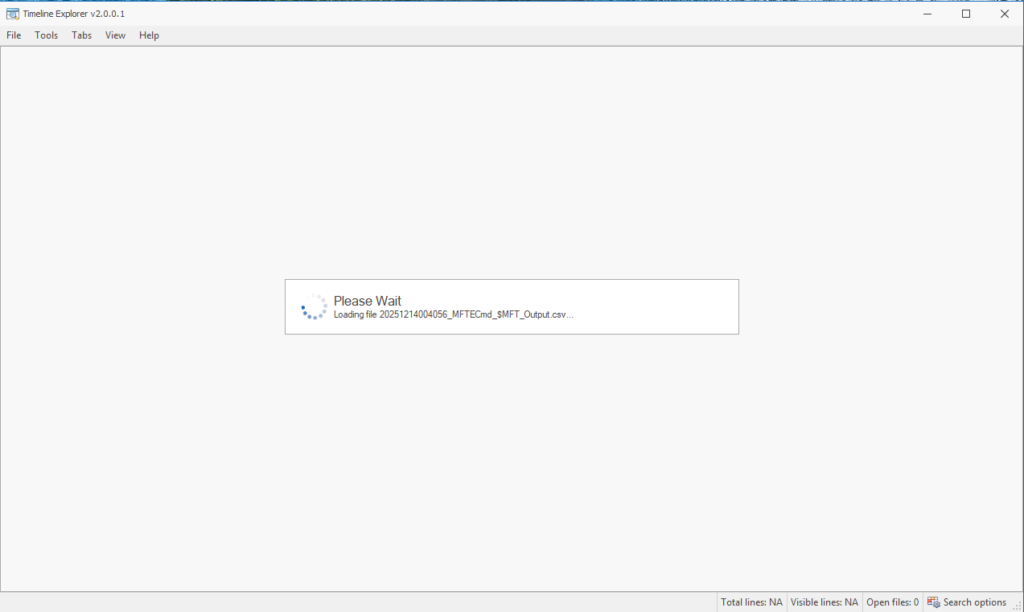
Once downloaded, start Timeline Explorer and load the CSV file. It might take a while depending on the size:
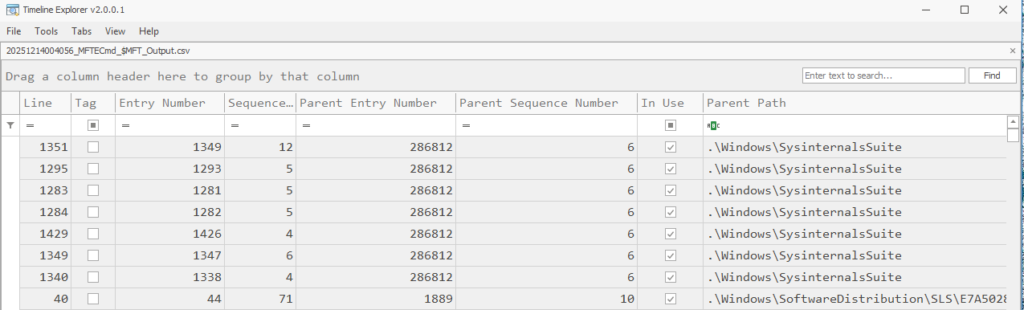
After a while you will see all of the contents of that NFTS volume:
Now we want to figure out what users are on this system so we can figure out who might’ve downloaded the initial executable. We can search for .\Users, by doing the following:
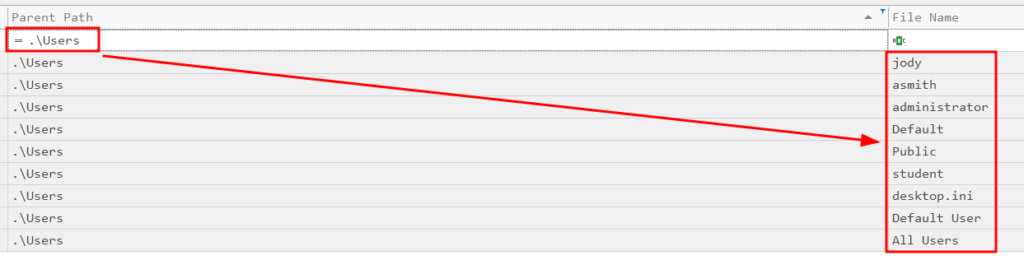
We now have a list of all the users on this machine. Now we need to search for potential files in each of these user’s Documents/Downloads/Desktop folders. Luckily for us, looking in Jody’s Downloads folder raises some eyebrows. Specifically, a .DOCM file. This is a macro-enabled word document, often used in phishing emails:

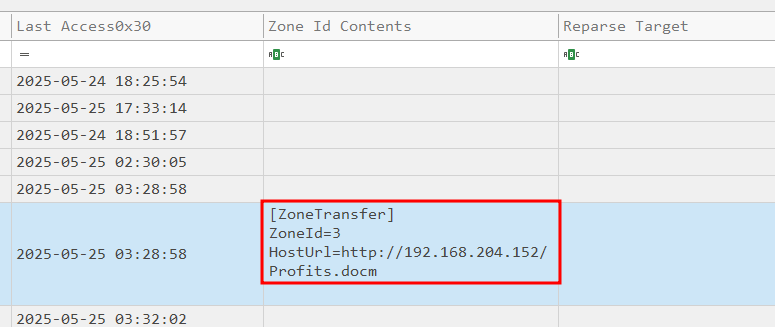
What is the IP address that hosted the malicious attachment?
From the above screenshot, we are able to confirm the .docm was the initial payload. We can also see the Zone.Identifier, which is metadata that tells you where a file originated from. If we scroll to the right we can see who hosted this file.
After the malware was executed, what IP did it connect to?
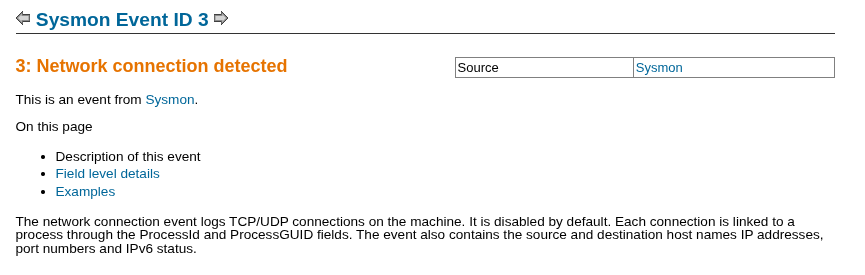
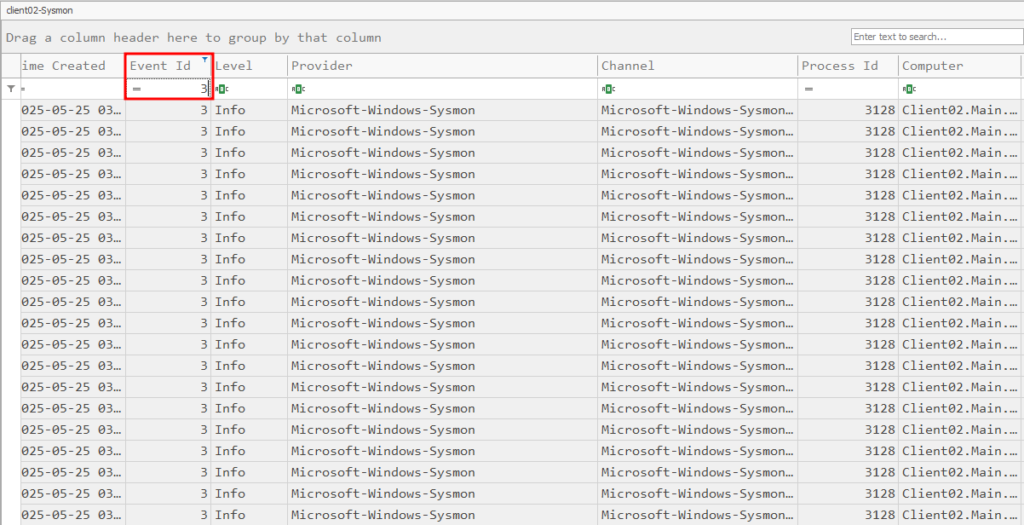
We have Sysmon logs from this host. One of the Sysmon event IDs we can use to our advantage is 3. This event shows new network connections.
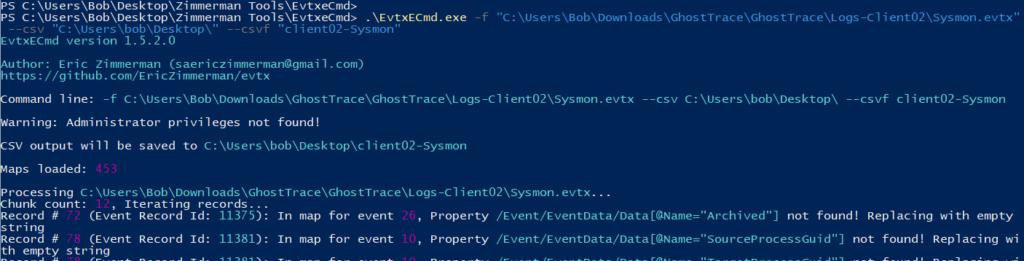
We are able to use Eric Zimmerman’s EvtxECmd.exe to parse Client02’s Sysmon event log:
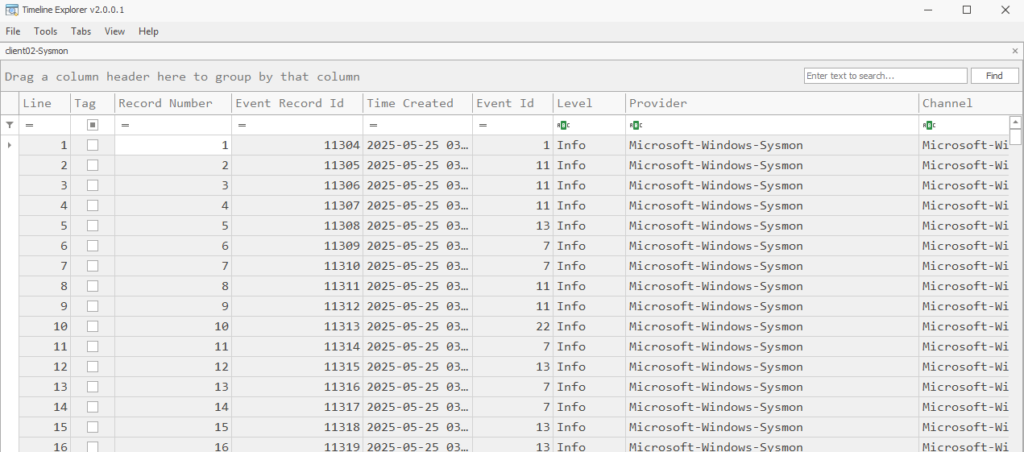
We can now load our CSV file using Timeline Explorer:
From here we want to filter for Sysmon Event ID 3, which indicates a network connection:
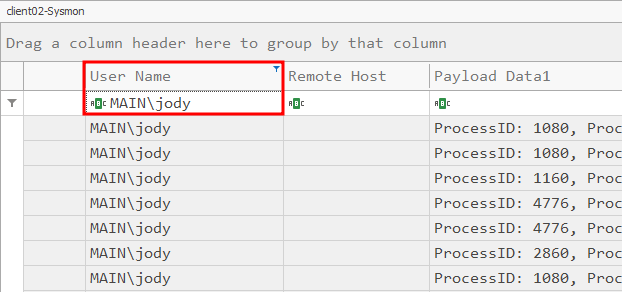
Now let’s use “Find…” to look for specific strings, like our user jody:
Now since we know the initial payload was a .docm file, we can look for Microsoft Office or Microsoft Word:

Now we need to look at the payload data all the way to the right for the connection information:
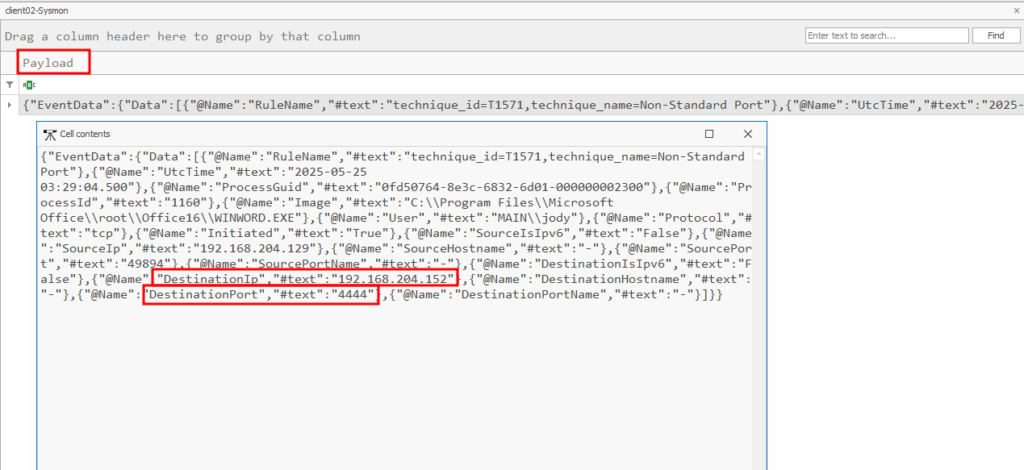
What is the name of the second-stage payload uploaded to Client02?
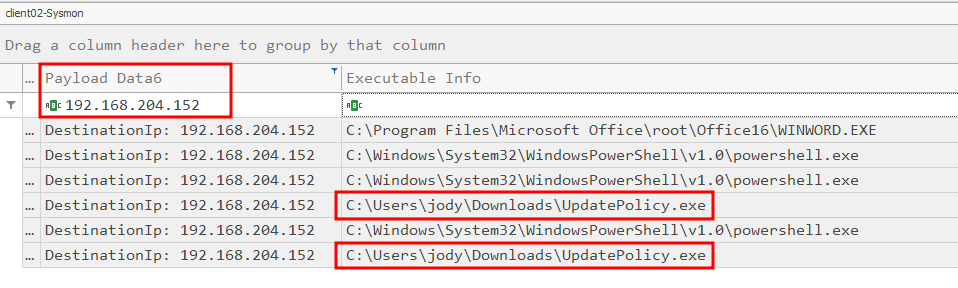
Next, we should apply a filter looking specifically for the attacker’s IP address. This will let us see anything that’s sent or received from that address. When we do we can see an interesting executable:
What port was used for the second-stage payload on Client02?
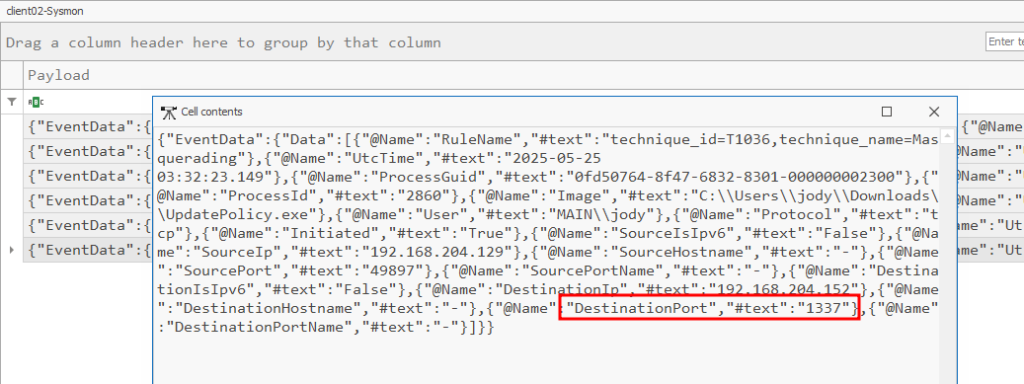
IF we examine the newly found “UpdatePolicy.exe” and scroll over and look at the payload data, we can find port 1337:
What tool was downloaded to enumerate the AD Enviroment?
We seen this file earlier in Timeline Viewer when examining the Client02 MFT.

What is the username of the targeted service account?
Powerview is a powerful enumeration tool. Fortunately for us, we have the Powershell event logs for Client02.
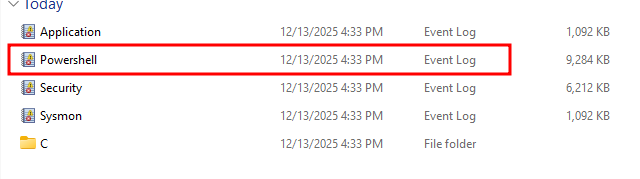
This means we can see the queries made by Powerview, let’s export the evtx to a csv and examine it in Timeline Explorer:
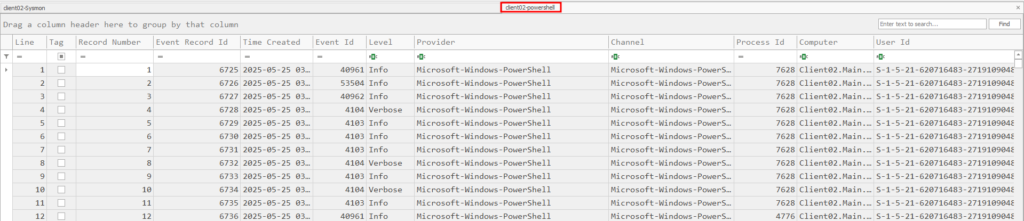
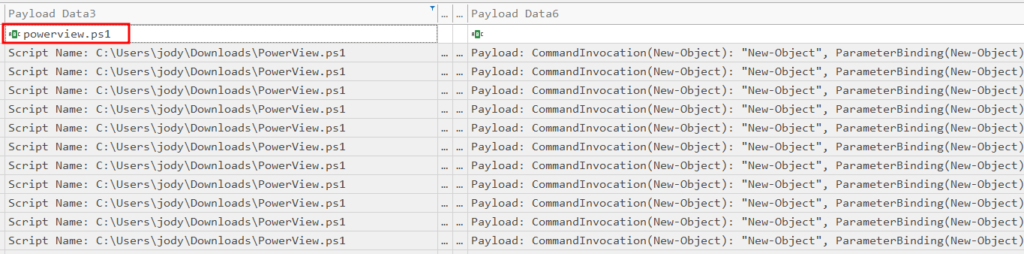
Filtering for any event with “powerview.ps1”:
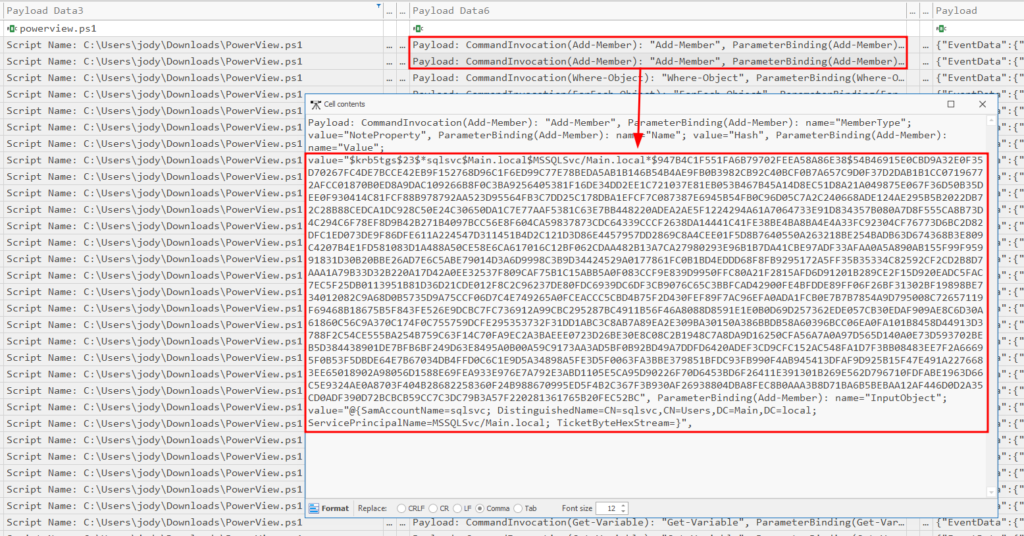
We can keep scour the events until we eventually see the NTLMv2 hash for the sqlsvc service account:
After cracking the granted ticket, when did the attacker login as that user?
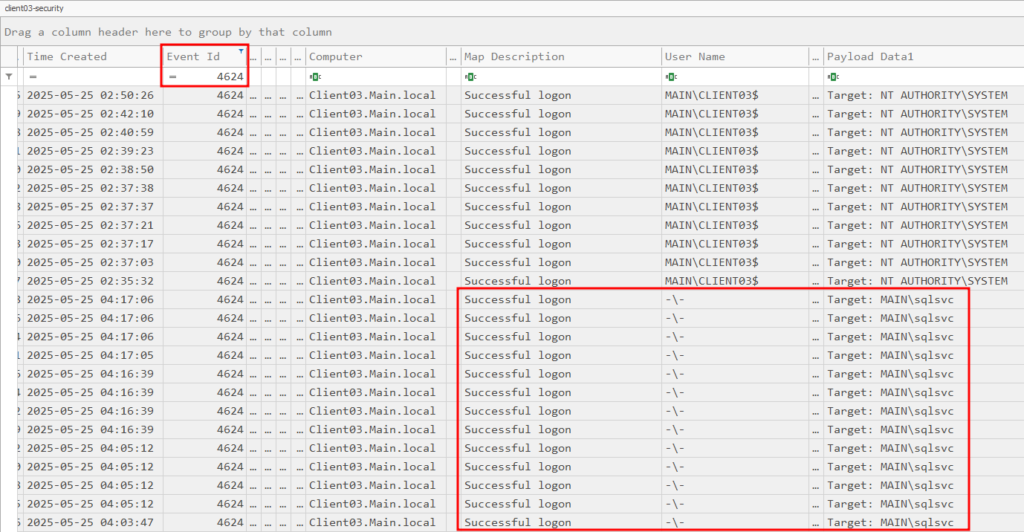
Since the attacker gained access to the service account’s hash, we should consider that account compromised and need to start searching for successful logins from that account across all machines. Luckily for us, we can use Event ID 4624:

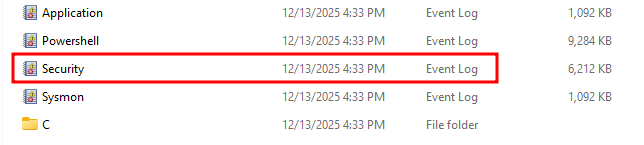
This event will be in the Security Event Log:
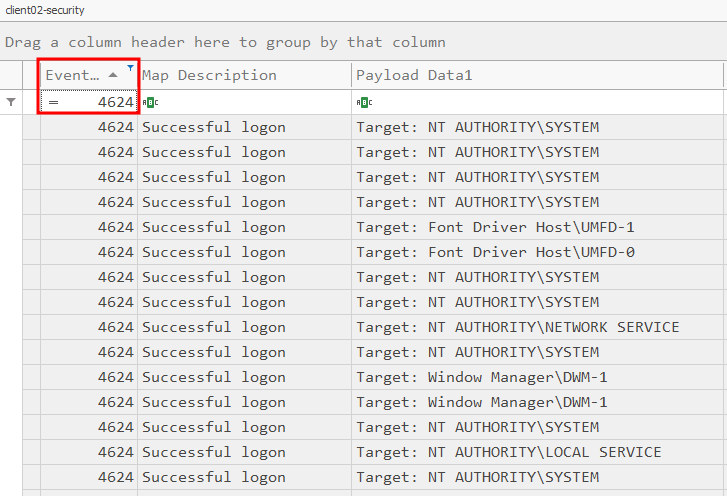
Just like before we can export the .evtx file to a .csv and open it in Timeline Explorer. Then we can filter for events with the ID of 4624:
If we try to filter for the compromised account, we get zero hits:
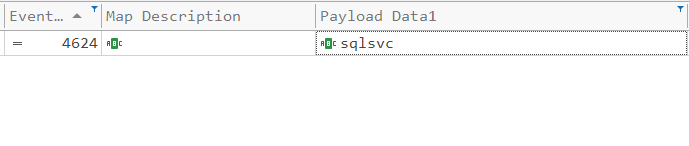
But remember, these credentials could be used to laterally move to another machine. Let’s check Client03’s security logs. This time we see a successful logon. This means the attacker gained access at 04:17:
What service was created by the attacker on Client03?
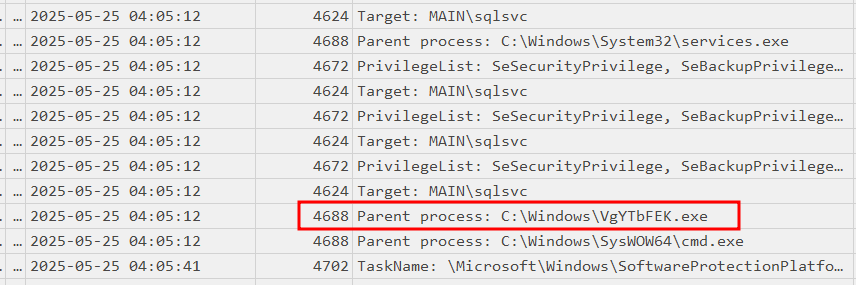
Now that we know the attacker has access, we can search the security logs on Client03 and examine the time around that initial login as the sqlsvc user, when we do we can see an interesting executable with event ID 4688, which indicated as new process has been created:
What executable was used to dump cleartext credentials on Client03?
We can continue to look for process creation on the newly compromised machine via Sysmon Event ID 1 and any payload containing the compromised sqlsvc account:

We can then focus on these events, where we can see that mimikatz is downloaded to the system and saved to sqlsvc’s download folder as “netdiag.exe”:

What is the username whose password was found on Client03?
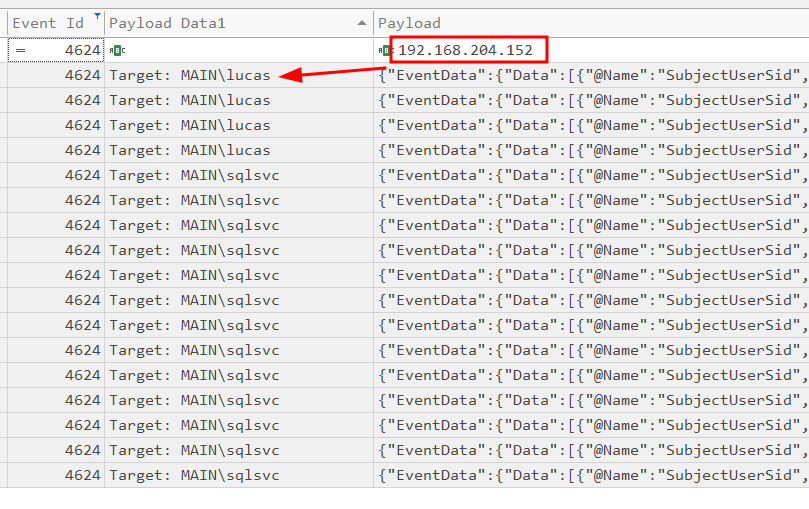
Searching for the attacker’s IP address and filtering for event ID 4624, we are able to see a logon as Lucas:
When did the attacker carry out the next attack targeting DC01?
We know the attacker has access to a new user, which allows us to pivot our search and focus on this user. Additionally, we can focus on an attack known as DCSync, this is used to extract credentials from a Domain Controller.
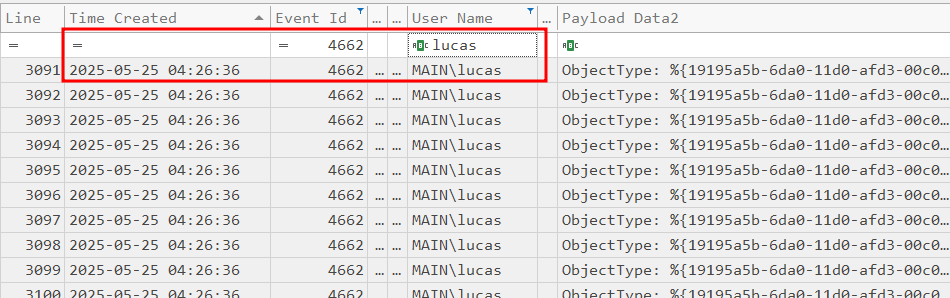
Referring to MITRE, we can use Event ID 4662 to detect a DCSync attack. Let’s filter for this event ID and the newly compromised user in the DC Security logs:
What time did the attacker authenticate as the Administrator?
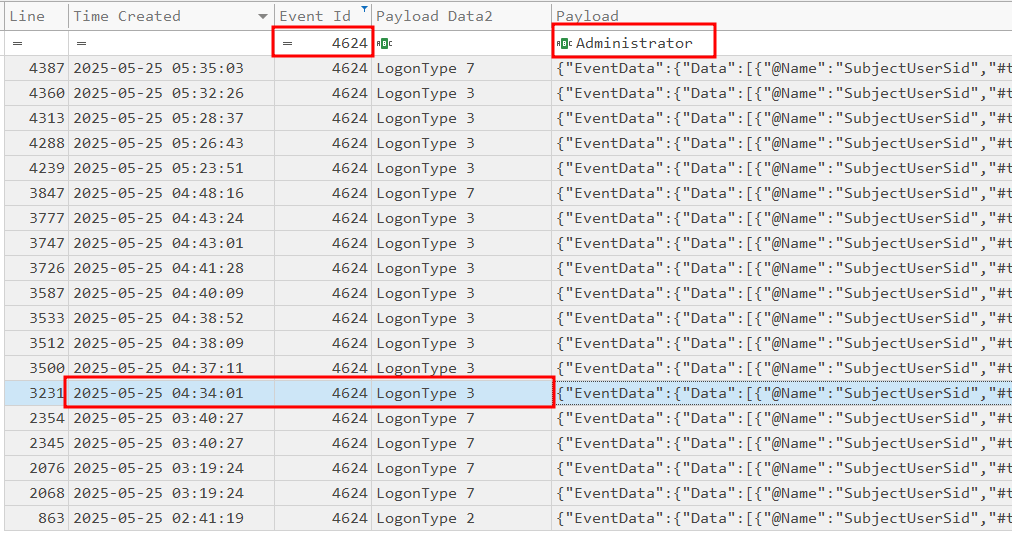
A DCSync attack will dump all of the password hashes from the domain controller. This means the attacker’s next step is to login to the domain controller as the domain admin. For this we can search for successful logons using Event ID 4264.:
What is the name of the service created for persistence on DC01?
The attacker now has access to the administrator user. The next step is to establish persistence on the domain controller. We can filter for process creation using Sysmon Event ID 1. We should also filter for the administrator user:
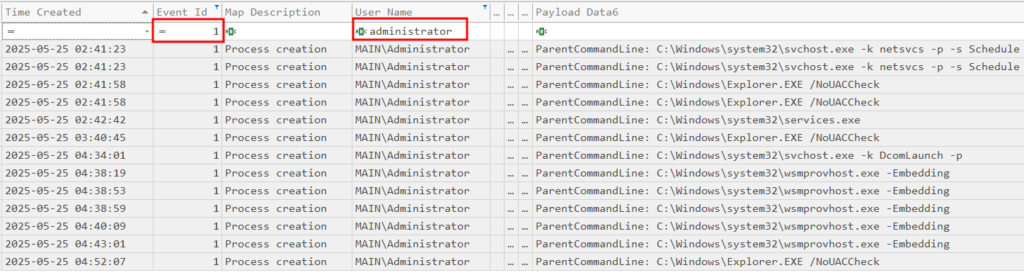
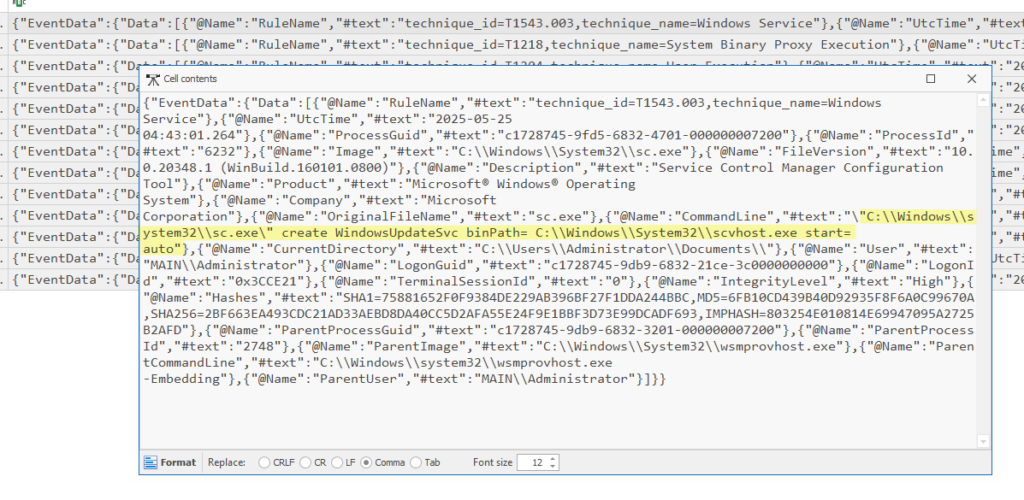
We are then left with a couple to examine. If we look at the payload contents, we can see sc.exe, which is a Microsoft binary for editing/creating services:
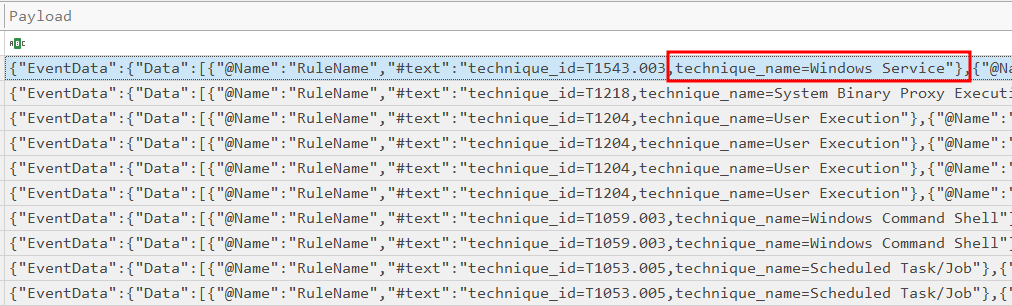
Clicking on this, we are able to see the contents of this event, including the created service:
What is the name of the scheduled task created on DC01?
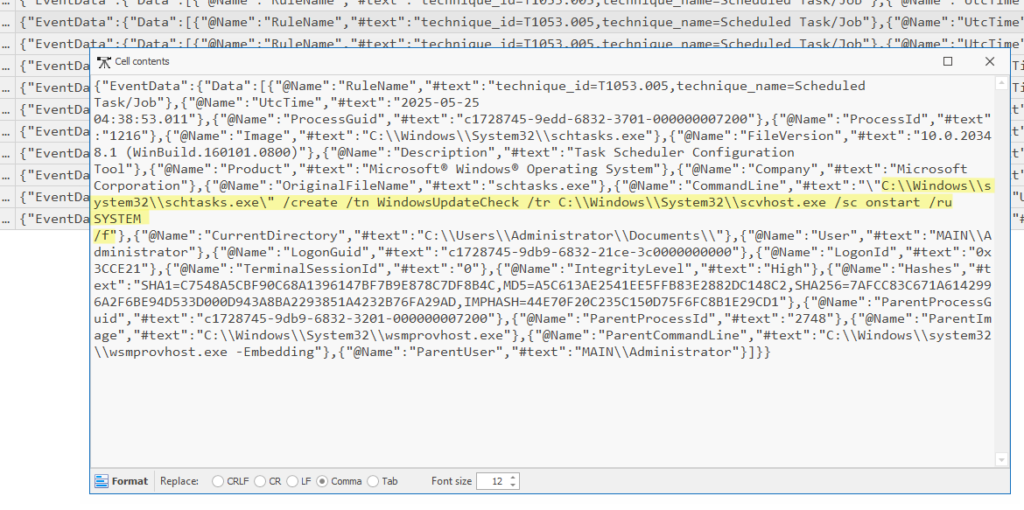
Another way of establishing persistence is by creating a scheduled task, similar to finding the service, we can look for process creation via the administrator user, instead we are looking for the user of schtasks.exe:
What registry key was created for persistence on DC01?
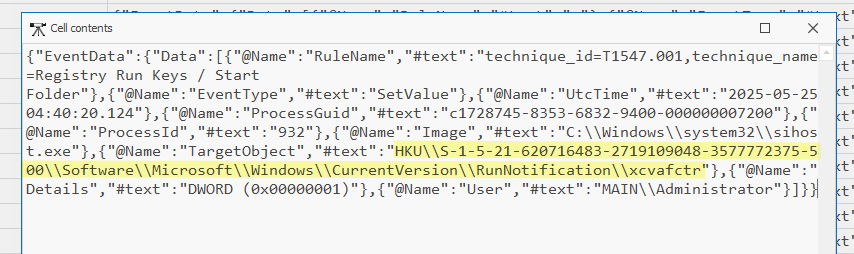
Finally, we can look for any modification to the registry done by this administrator user. Specifically, we want to look for registry run keys. This is a well known method of establishing persistence. Luckily for us we can do this by filtering for Sysmon Event ID 13:
So let’s filer for this EventID and the administrator user in the sysmon logs of the domain controller:
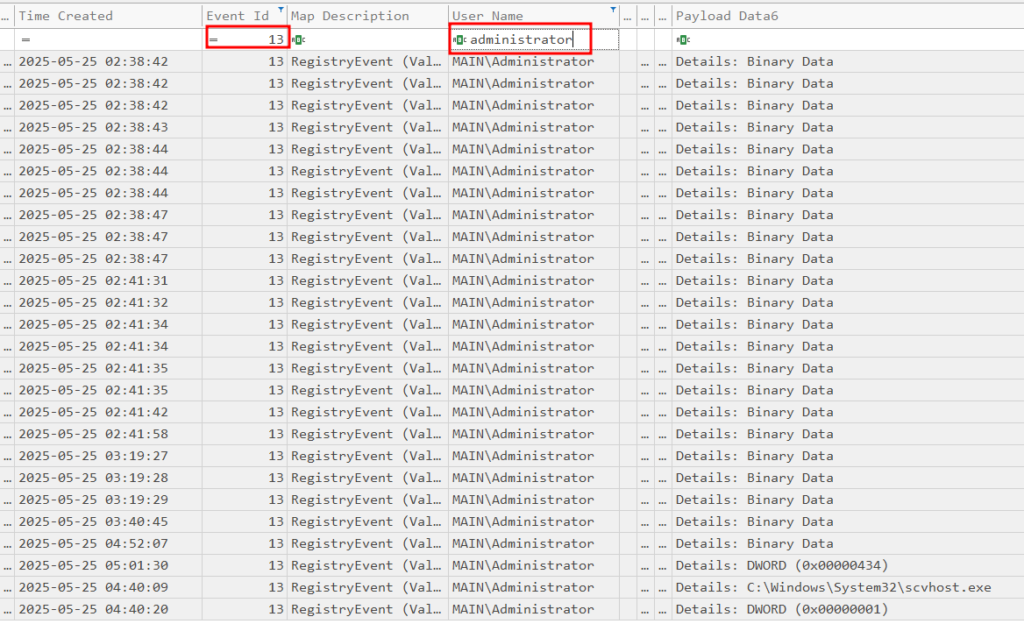
DWORD signifies that the registry was written to, if we look at those, we can see:

Examining this event will show us the value: